
I Built a Morning Briefing Agent in Claude Cowork in 15 Minutes. Here Is Exactly How.
A step-by-step walkthrough for building a daily AI summary that scans your Gmail and Slack so you do not have to.


Every morning I used to do the same thing: open Gmail, scroll through whatever came in overnight, switch to Slack, catch up on channels, check my calendar, and try to figure out what actually needed my attention before the day started running me.
That process took anywhere from 20 to 40 minutes. It was not thinking. It was just processing.
I built a Claude Cowork scheduled agent that does all of that for me every morning at 7:30 AM. It scans my Gmail, reads my Slack channels, checks my calendar, and delivers a clean briefing directly in Cowork before I even pour my first cup of coffee. The whole setup took about 15 minutes.
This post walks through every step of how I built it so you can do the same.
What You Need Before You Start
Claude Cowork requires a paid Claude subscription: Pro, Max, Team, or Enterprise. If you are on a free plan this will not be available to you yet.
For this specific agent, you will also need a Gmail account and a Slack workspace. Both connect to Cowork through built-in connectors, and the setup takes less than two minutes per app.
That is it. No coding, no API keys, no Zapier account.
Step 1: Open the Connectors Marketplace
In the Claude desktop app, click Settings in the left sidebar, then click Connectors. You will see a Browse connectors button in the top right. Click it.
This opens a marketplace of pre-built connectors that let Claude access your real apps and data. Gmail is listed as the most popular connector. Slack is right there too.
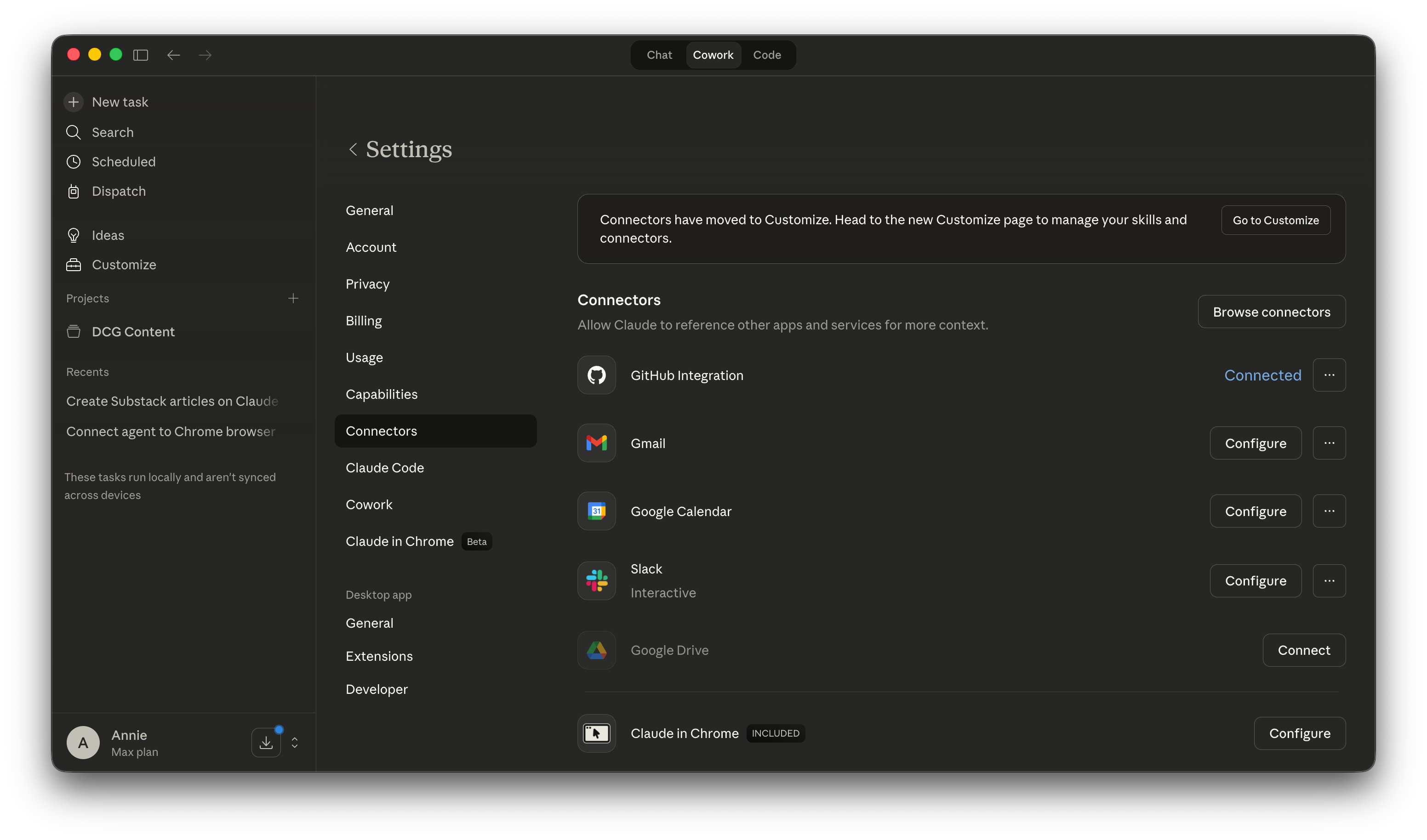
Click the + button next to Gmail. You will be prompted to sign in with Google and grant read permissions. Do the same for Slack.
Important note on permissions: for this workflow, Gmail only needs read access. Cowork will not send any emails on your behalf unless you explicitly tell it to. Same with Slack. You are giving it eyes, not a voice.
Step 2: Confirm Both Connectors Are Active
After connecting, go back to Settings > Connectors. You should see Gmail and Slack both listed with a Configure button next to them, which means they are installed and active.
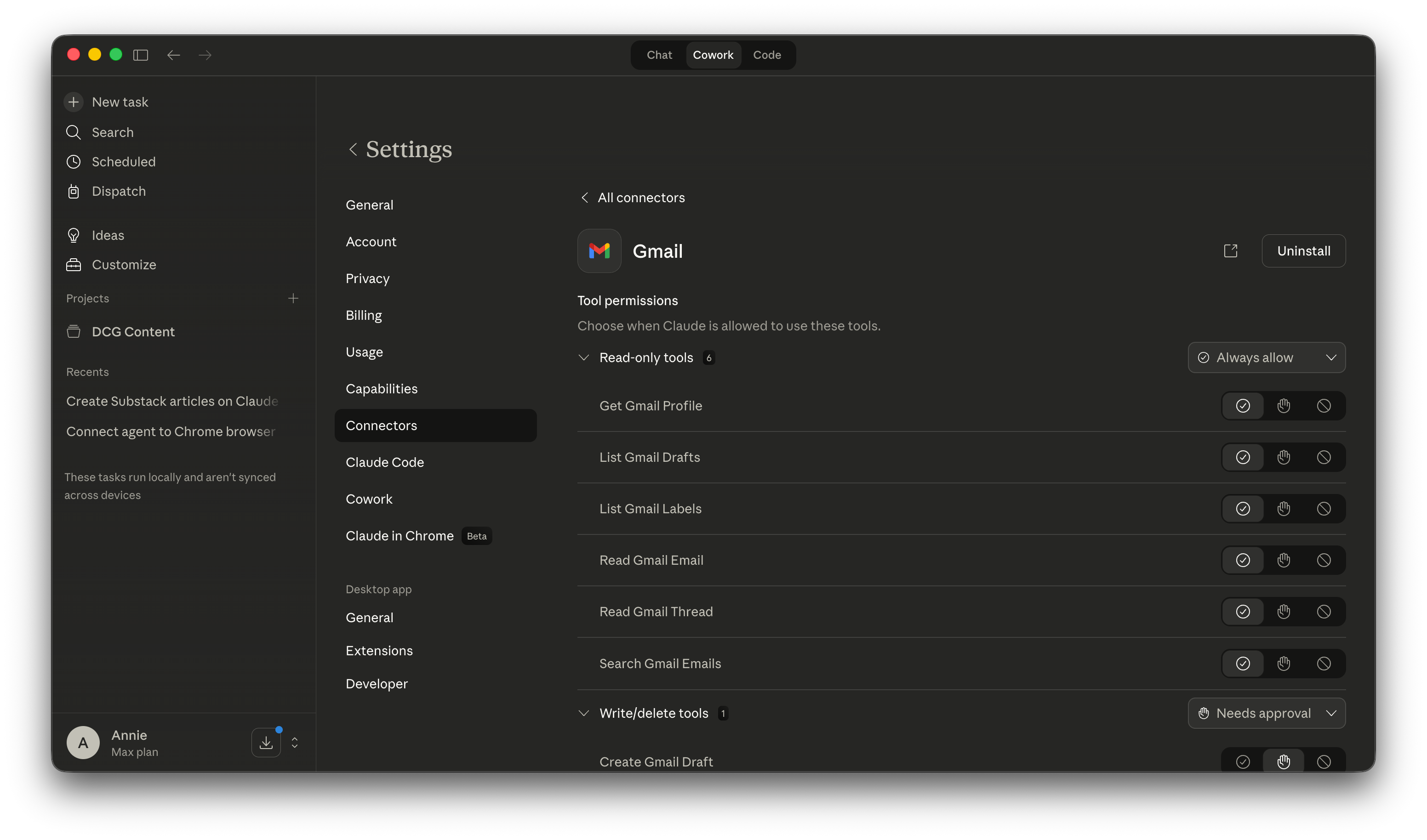
If you click into Gmail, you can see exactly which tools Cowork has access to. The read-only tools are set to Always allow by default. The only write tool is Create Gmail Draft, which is set to Needs approval. This means Claude can never send an email without you explicitly approving it first.
Step 3: Start a New Task and Describe What You Want
Click New task in the top left of Cowork. In plain language, describe what you want the agent to do. I typed something like this:
Build me a morning briefing agent that runs every day at 7:30 AM. It should scan my Gmail inbox and all my Slack channels for the past 24 hours, check my Google Calendar for today’s events, and deliver a formatted summary with sections for my calendar, emails that need action, emails to note, Slack highlights, and one thing to handle first.
Cowork will process this and surface a scheduling confirmation showing the task name, description, and the schedule it has set up. You will see a Schedule button and a Cancel button.
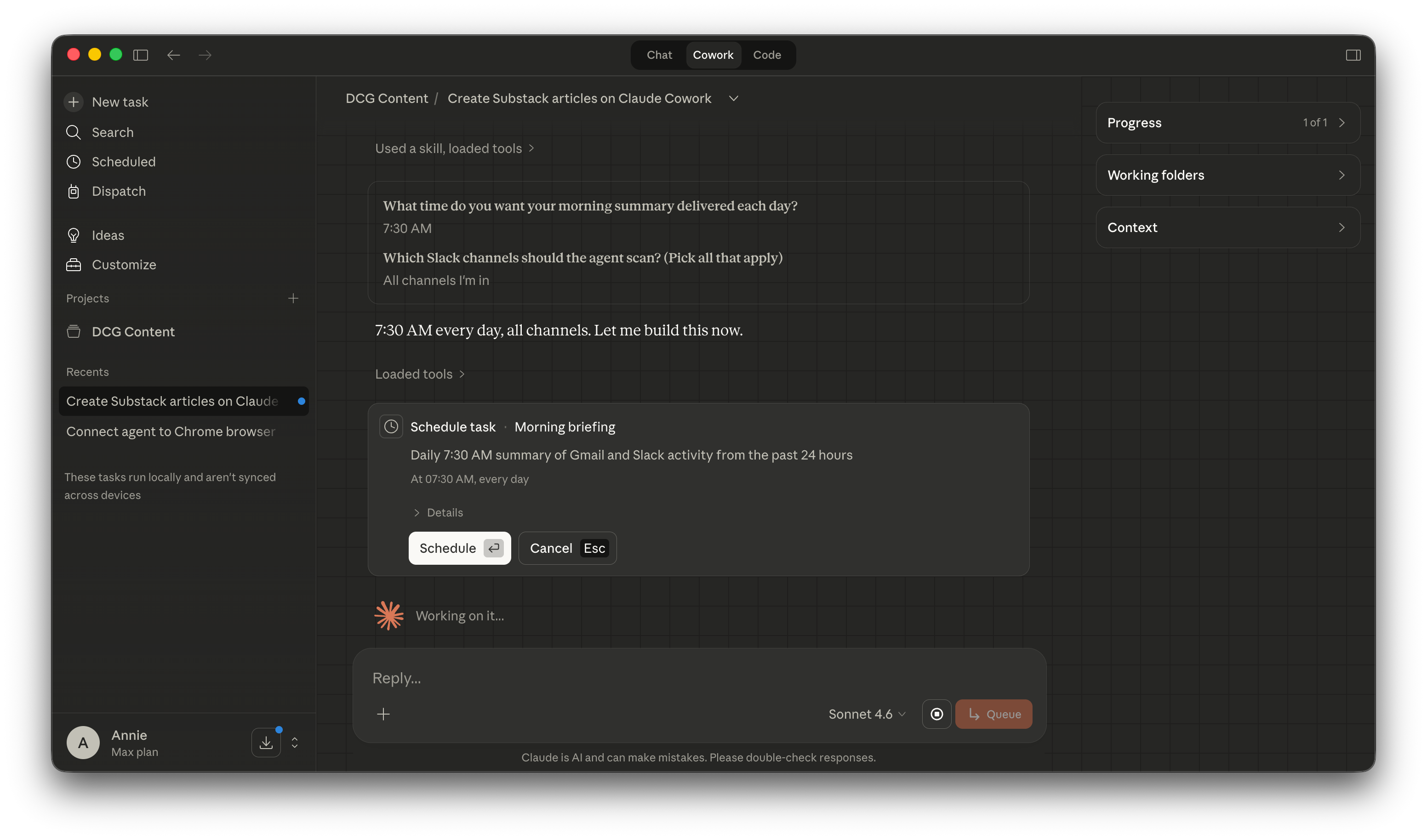
Review the details and click Schedule. That is it. The agent is live.
Step 4: Find It in Your Scheduled Tasks
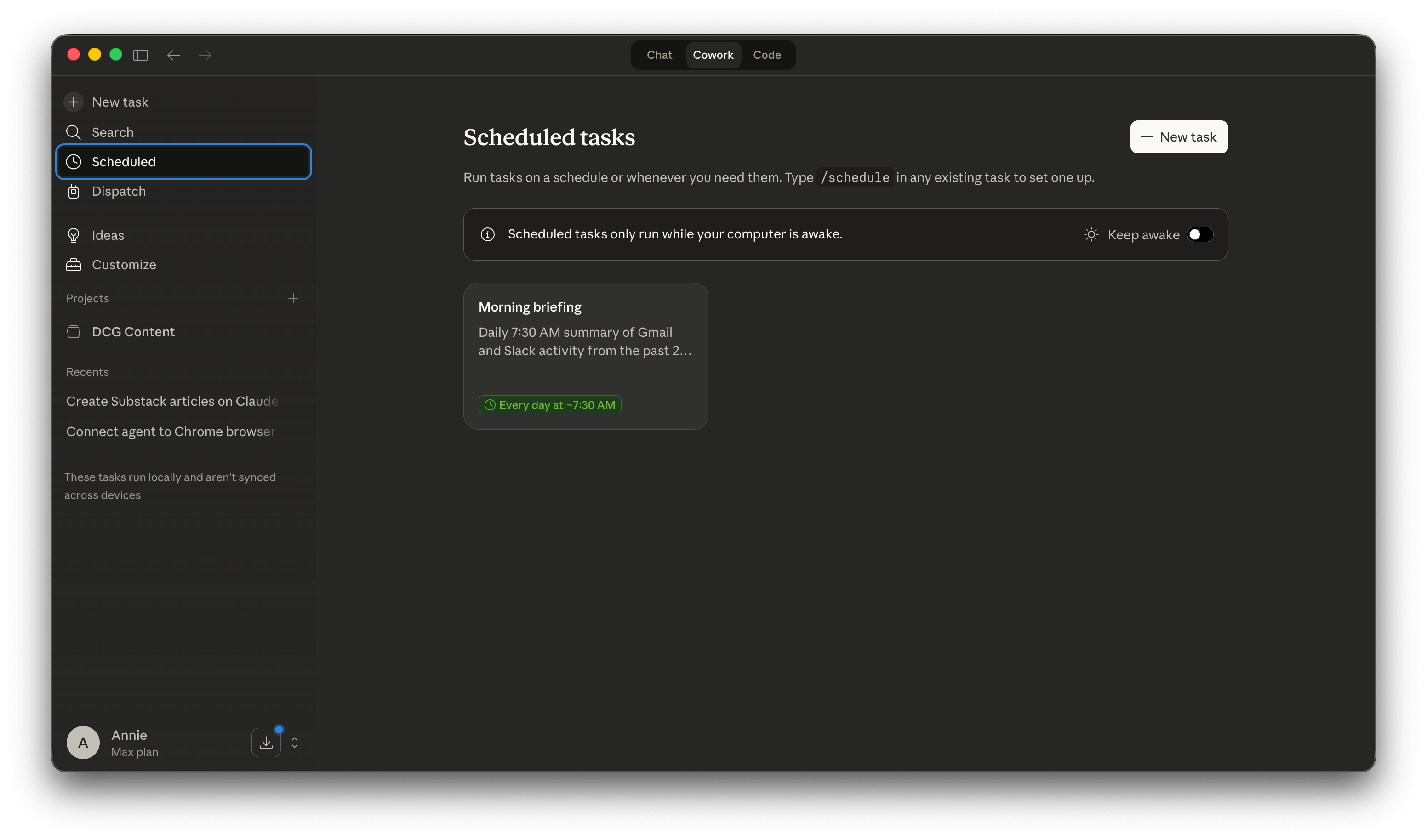
Click Scheduled in the left sidebar. You will see your Morning briefing task listed with a green label showing the schedule. Mine reads “Every day at ~7:30 AM.”
Click into the task and you will see the full configuration: the description, which folders and connectors it has access to, the repeat schedule, and the full instructions Cowork is running each morning.
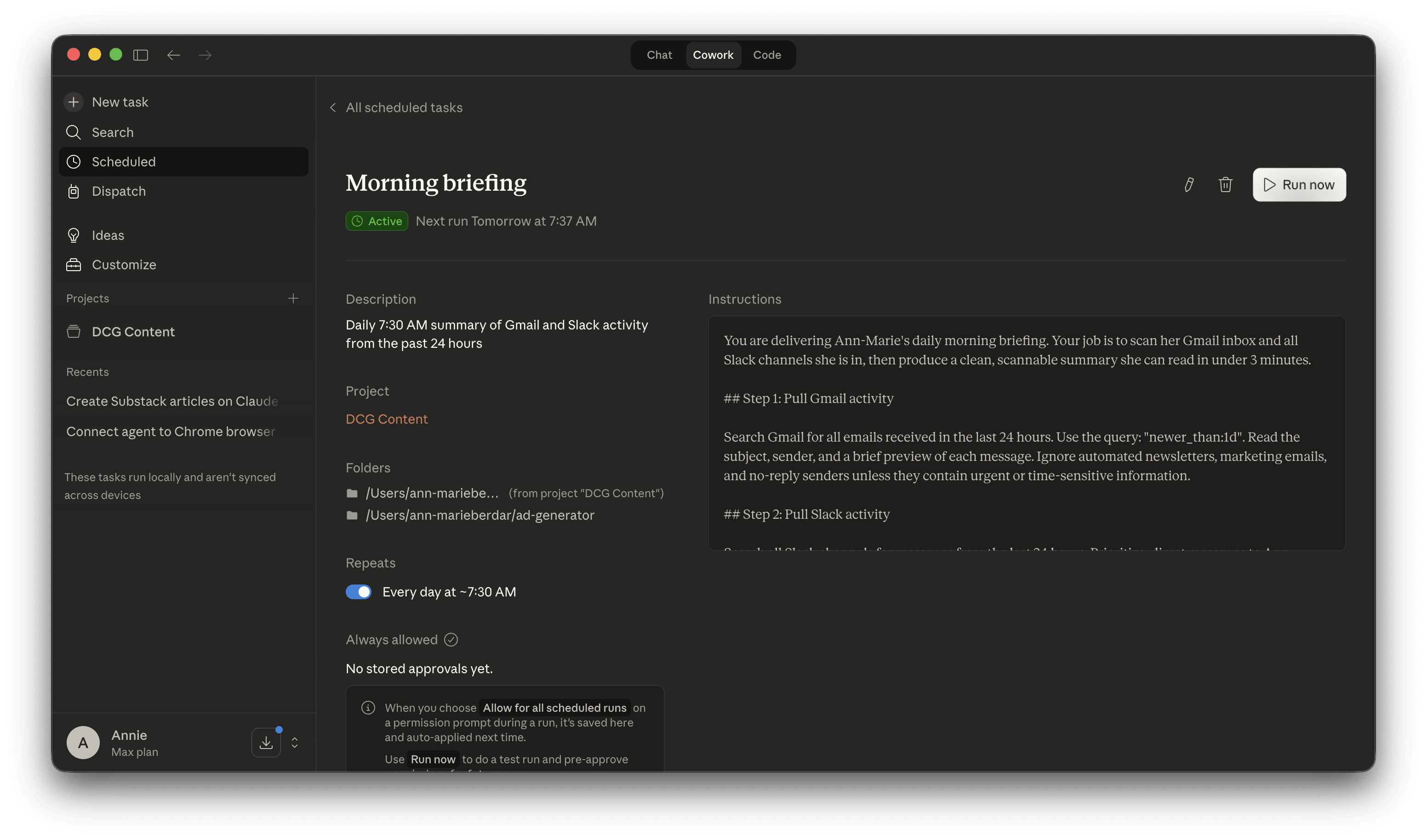
One important detail: there is a note on this screen that says “Scheduled tasks only run while your computer is awake.” If your Mac is closed at 7:30 AM, the task will run the next time you open it. If you want it to run reliably, leave the Keep awake toggle on.
Step 5: Run It Once to Pre-Approve Permissions
Before the task runs automatically, click Run now. This does two things: it gives you a preview of what your briefing will look like, and it stores the permission approvals so future runs never pause on a prompt.
The first time it runs, Cowork may ask you to confirm that it can access Gmail and Slack. Choose Allow for all scheduled runs. After that, it runs fully automatically.
What the Output Actually Looks Like
Here is what my briefing looked like on the first real run:
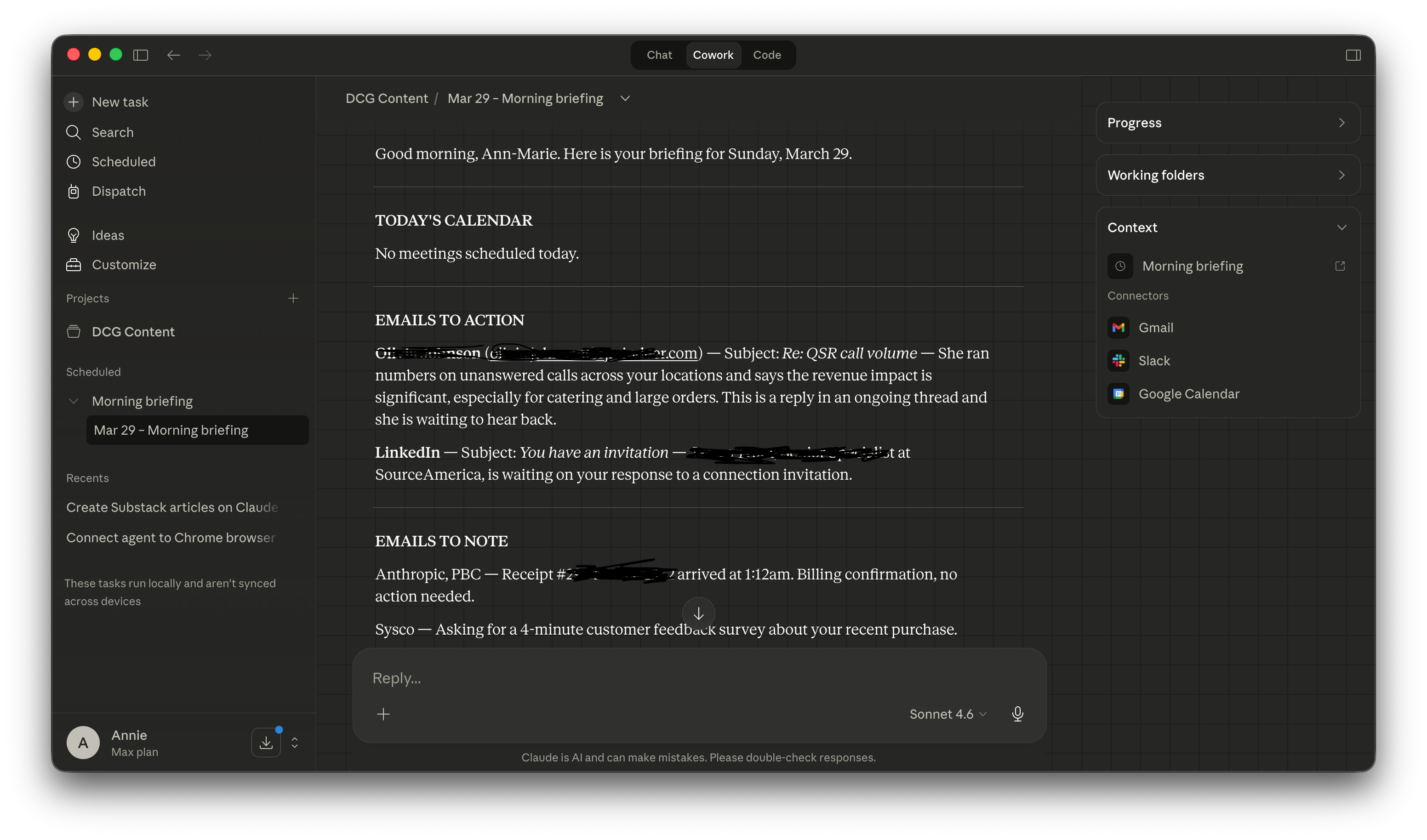
It opened with my calendar for the day, then flagged two emails that needed a response with a one-sentence summary of what each person needed. Below that, two informational emails that were worth knowing about but required no action. Then Slack highlights.
The whole thing was scannable in under two minutes. I knew exactly what needed my attention before I opened a single app.
How to Customize It for Your Situation
This is where it gets useful for your specific business. The agent runs whatever instructions you give it, so you can shape the output to match how you actually work.
If you only want to scan certain Slack channels, name them specifically in the prompt. If you want the briefing to flag emails from specific people, add that. If you want it to pull from a project management tool like Notion or Asana, connect that as a connector and add it to the instructions. The same connector marketplace has dozens of integrations.
You can also change the delivery time. Click the pencil icon on the task, update the schedule, and save. Done.
What to Try Next
Start exactly as described here. Get the basic Gmail and Slack briefing running for a week. Once you are used to the format, start editing the prompt to add the context that matters most to your day.
A few variations I have seen work well for small business teams: adding a Google Calendar section that surfaces prep notes for upcoming meetings, pulling recent customer emails from a specific label, or summarizing open tasks from a project tool before a weekly team standup.
The underlying principle is the same in all of them. You write a clear set of instructions once. The agent handles the processing every single day. You show up informed.
If you want help designing a morning briefing that fits the specific rhythm of your business, or if you want to build something more advanced on top of this, that is the kind of implementation work I do with clients. The link to reach me is below.
Daley Growth Consulting helps small business leadership teams implement AI in a way that actually works, without the learning curve eating the productivity gain. If you are ready to go beyond the basics, let’s talk.